How to transfer money between two accounts
In HomeEasyBudget, a transfer between two bank accounts is called a "Split transaction". When you create a split transaction, the application automatically generates two linked transactions: one in the source account and one in the destination account. Any change made to one affects the other.
Create a split transaction
- Select one of the two accounts and click "Add a transaction".
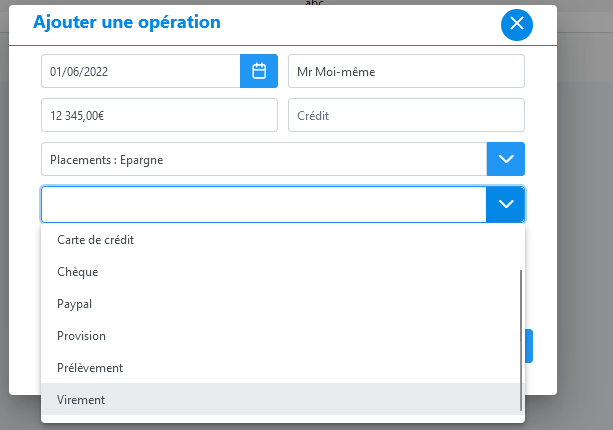
- Fill in the details: date, payee, category, then choose a payment method that allows split transactions ("Transfer" or "Check" by default).
- A "Split transaction" option appears once the payment method is selected.
- Check this box to specify the recipient account and the payment method for the transaction created in that account.
- Click "Save".




The two linked transactions are then created. In the transactions list, a chain symbol appears in the "Category" column to identify the linked transactions.

Delete a split transaction
You can delete a split transaction just like a normal transaction, from either of the two linked transactions. This automatically deletes both transactions.