How to export my data to Excel or make a backup
Introduction
In HomeEasyBudget, you can easily export your data to then import it into Microsoft Excel or any other spreadsheet, such as OpenOffice Calc or LibreOffice Calc.
This feature also lets you back up your data yourself on your computer.
The benefits of the XML format
HomeEasyBudget exports data in XML format, which offers the following benefits:
- The data is structured, hierarchical and typed.
- There is no problem with special characters (unlike the CSV format, for example).
- The XML format is universal: it can be used both for importing into Microsoft Excel and into any software with a configurable import function.
- Third-party application developers can import the data from an XML document very easily.
Exporting bank accounts
To export your data in XML format, proceed as follows:
- Click "Settings".
- Click the "+" icon.
- Click "Export accounts".



A dialog box appears, where you can choose:
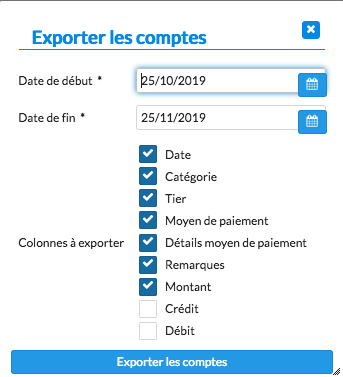
- the start and end dates of the period to export;
- the columns to export.
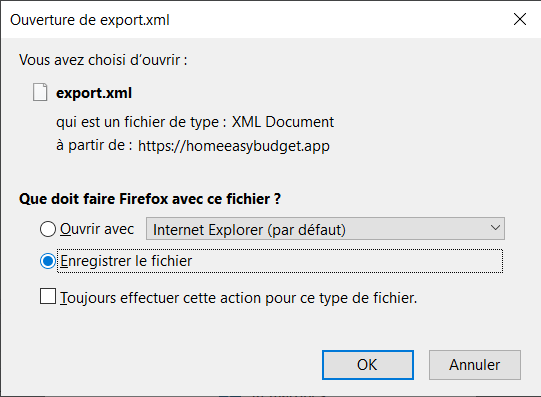
Click "Export accounts", then choose the destination folder (if your browser allows it).
Importing the data into Microsoft Excel
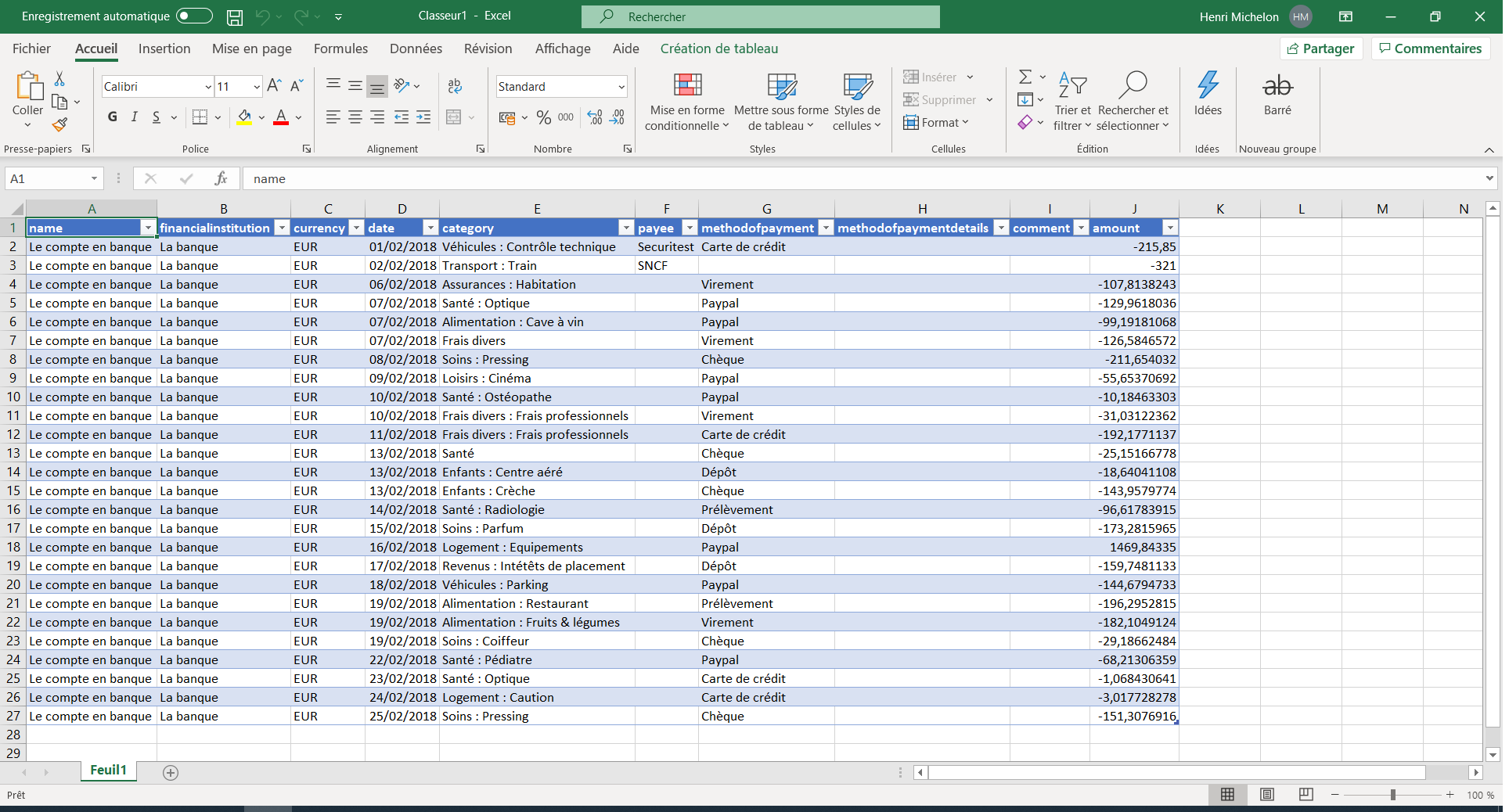
Microsoft Excel can import the data from an XML document such as the one you have just exported.
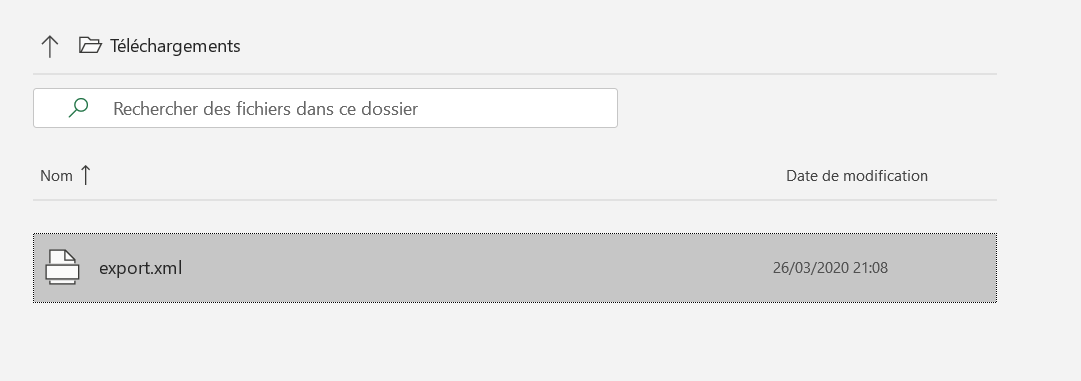
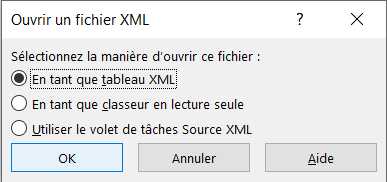
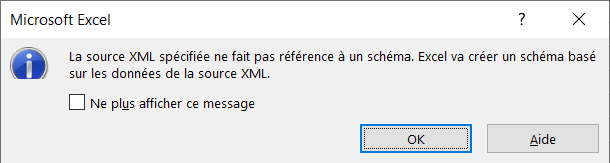
Start Microsoft Excel, then open the exported XML file. Import the document as an XML table and let Excel determine the document's columns. Your bank account is then imported into Microsoft Excel.