How to check off or reconcile a bank account
Checking off
Checking off, or reconciling, a bank account consists of checking all the transactions entered in HomeEasyBudget against a bank statement — on paper or online — over a given period.
This reconciliation lets you check that your personal or association accounts are correct: no missing transaction, no data-entry error, no unapproved transaction, no duplicate, and so on.
To check off or reconcile a bank account, proceed as follows:
- Have your latest bank statement on hand.
- Display the account's transactions in HomeEasyBudget using the "Accounts" menu.
- Click the "Reconciliation" button: the reconciliation row appears.
- In the "Ending balance" box, enter the balance shown on your bank statement.
- In the first column, on the left of the transactions table, check the boxes of the transactions that match those on your statement, checking the credit or debit amounts.
- Do this for every transaction listed on your bank statement.
- If your accounts are correct, or after any corrections, you should reach the point where the difference between your accounts and the bank statement is zero.
- You can then validate the reconciliation by clicking the "Finish" button.



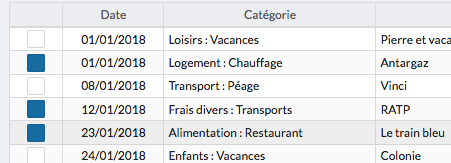


The marked-off transactions disappear from the table: they have been validated and can no longer be changed.
Pausing or resuming a reconciliation in progress
If you leave a reconciliation in progress, close the application or switch bank account during a reconciliation, don't worry: you can automatically pick up where you left off, simply by returning to the account concerned.
If you want to stop the reconciliation in progress, click the "Cancel" button.

Viewing validated transactions
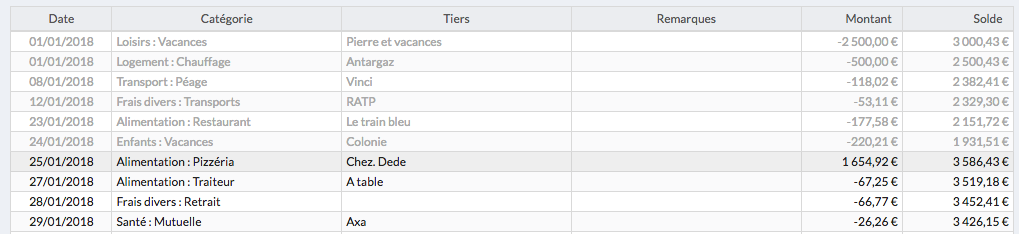
You can view previously marked-off and validated transactions by clicking the "All" button above the transactions table. Marked-off transactions from the last 12 months (the default setting, which you can change in your settings) appear in light gray in the table.

Canceling a reconciliation
If you want to cancel the last reconciliation:
- Click the "Settings" menu.
- Click the "+" button.
- Click the button that shows the list of accounts.
- On the row of the account whose reconciliation you want to cancel, click the icon that shows the "Reconciliation history".
- Click the "trash" icon to cancel the last reconciliation.